Tuesday, June 17, 2014

SCCM Dynamic Collection based on OS, Architecture and Machine model

Here is the SCCM Dynamic Collection query based on OS, Architecture and Machine model.
In this case: Windows 7 Enterprise, x64 and model: HP ProBook 6570b.

select SMS_R_SYSTEM.ResourceID,SMS_R_SYSTEM.ResourceType,SMS_R_SYSTEM.Name,SMS_R_SYSTEM.SMSUniqueIdentifier,SMS_R_SYSTEM.ResourceDomainORWorkgroup,SMS_R_SYSTEM.Client from SMS_R_System inner join SMS_G_System_COMPUTER_SYSTEM on SMS_G_System_COMPUTER_SYSTEM.ResourceID = SMS_R_System.ResourceId inner join SMS_G_System_OPERATING_SYSTEM on SMS_G_System_OPERATING_SYSTEM.ResourceId = SMS_R_System.ResourceId where SMS_G_System_COMPUTER_SYSTEM.Model in ("HP ProBook 6570b") and SMS_G_System_OPERATING_SYSTEM.Caption = "Microsoft Windows 7 Enterprise" and SMS_G_System_COMPUTER_SYSTEM.SystemType = "x64-based PC" and SMS_R_System.OperatingSystemNameandVersion = "Microsoft Windows NT Workstation 6.1" and SMS_R_System.Client = 1 and SMS_R_System.Obsolete != 1


Wednesday, June 11, 2014

Installation failed with error: 0x80070656. The operating system reported error 2147944022: Error opening installation log file.

Deploying HP WebCam 1.0.26.3 with SCCM 2007 on Windows 7 64-bit resulted with following error:

Installation failed with error: 0x80070656. The operating system reported error 2147944022: Error opening installation log file

This software was deployed regularly using Install Software SCCM Task Sequence component.


After spending some time with testing and log analyzing, I tried Command line Task Sequence component where I specified setup.exe command, the package and credentials for admin user.
After TS launching, the issue was successfully resolved and HP WebCam software installed on the machine.


Thursday, June 5, 2014

An error occured while starting the task sequence (0x80070032).

SCCM TS failed with starting Windows 7 OSD:


Solution for this issue is to format HDD with diskpart:

1. F8 for Command prompt.
2. Diskpart
3. Select disk 0
4. clean
5. Exit

After restarting the machine TS start without to report any issue.

Tuesday, June 3, 2014

Disable Windows features on Windows 7 x64 with SCCM 2007 TS

DISM command can be used to Disable Windows features on Windows 7  with SCCM 2007 TS.

Here is the syntax for disabling Fax Services:

DISM /online /Disable-Feature /FeatureName:FaxServicesClientPackage /Quiet /NoRestart

This syntax can be added in TS component and it works for Windows 7 x86 architecture.

For Windows 7 x64, SCCM 2007 reports an error:

The operating system reported error 11: An attempt was made to load a program with an incorrect format.


In order to resolve the error, Disable 64-bit file system redirection check box should be enabled.


Thursday, May 29, 2014

SCCM 2007 OSD Build and Capture Task sequence failled during installing Windows updates

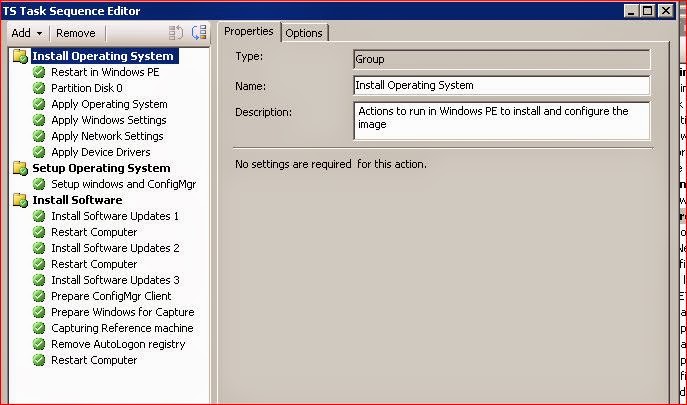
Installing Software Updates fails during Build and Capture Task sequence.
This issue can be caused from multiple reasons, requiring restarts, dependencies from other updates..etc
To clear all these issues, I implemented three Software updates component, configured with Continue on error followed with Restart after each Software updates component.
Using this way  all errors, restarts, after installation issues were resolved and Capture part of TS can continue without any issue.


Friday, May 23, 2014

WMI Filter for Windows 7 x86 or x64 OS

If you want to use WMI Query in SCCM TS to make difference between Windows 7 x86 and Windows 7 x64 then this WMI query should be used:

Win 7 32 bit machines:

select * from Win32_OperatingSystem WHERE Version like "6.1%" AND ProductType="1" AND NOT OSArchitecture = "64-bit"

Win 7 64Bit machines:

select * from Win32_OperatingSystem WHERE Version like "6.1%" AND ProductType="1" AND OSArchitecture = "64-bit"

Monday, April 28, 2014

SCCM 2007 Build and Capture Task Sequence with Software update failed

During Build and Capture Task Sequence, Software update installing is failing and Capture of the image does not start.
smsts.log file shows following error:

!sVolumeID.empty(), HRESULT=80004005
!sTSMDataPath.empty(), HRESULT=80070002
TS::Utility::GetTSMDataPath( sDataDir ), HRESULT=80070002
Failed to set log directory. Some execution history may be lost.
The system cannot find the file specified. (Error: 80070002; Source: Windows)
Executing task sequence
!sVolumeID.empty(), HRESULT=80004005
!sTSMDataPath.empty(), HRESULT=80070002
Task Sequence environment not found

This issue is reported by Microsoft: http://support.microsoft.com/kb/2894518

Here is the explanation of the cause from MS:

The first restart that is initiated by the software update is controlled by the task sequence. However, the second restart request is initiated by a Windows component (typically, Component-Based Servicing) and therefore is not controlled by the task sequence. Because the second restart is not controlled by the task sequence, the task sequence execution state is not saved before the restart. When the task sequence resumes after the second restart, no state is available to continue successfully.
______________________________________________________

To resolve this issue, it is recommended to remove following updates:
2862330 MS13-081: Description of the security update for 2862330: October 8, 2013
2771431 A servicing stack update is available for Windows 8 and Windows Server 2012
2871777 A servicing stack update is available for Windows RT, Windows 8, and Windows Server 2012: September 2013
2821895 A servicing stack update is available for Windows RT and Windows 8: June 2013
2545698 Text in some core fonts appears blurred in Internet Explorer 9 on a computer that is running Windows Vista, Windows Server 2008, Windows 7, or Windows Server 2008 R2
2529073 Binary files in some USB drivers are not updated after you install Windows 7 SP1 or Windows Server 2008 R2 SP1
2871690 Microsoft security advisory: Update to revoke noncompliant UEFI boot loader modules


In my case I had only 2862330 and 2529073. After their removal TS finished successfully.