Tuesday, August 2, 2011

Remove SCCM Child Primary Site

MTS - Primary Central Site
SEC - Secondary Site
MT1 - Child Primary Site

Pictures below show on SCCM Child Primary console that Computer Collections and Native SCCM Central Site Software Deployment Packages and Advertisements are locked out.


Here is the  procedure how to remove MT1 SCCM Child Primary Site from its MTS SCCM Parent Site.
First step is to delete MT1 child site address from MTS Parent Site via SCCM console.


Next step is to execute Preinst.exe which is located in C:\Program Files (x86)\Microsoft Configuration Manager\bin\i386\00000409 folder:


Executing Preinst /dump shows SCCM sites in SCCM Parent Central Site. The target is to remove MT1 Child Primary Site.

Delete jobs for MT1 site: Preinst /deljob MT1

Delete MT1 site: Preinst /delSITE MT1 MTS

Execute again Preinst /deljob MT1 to delete any job in meantime

Executing again Preinst /dump comand shows that MT1 Child Primary Site has been removed from SCCM Parent site.

On SCCM Child Primary Server Console remove settings from Report to parent site to Central site

Finaly you can see that all locked out items have been removed. All Software deployments packages, Advertisments, OS deployment packages, and Task Sequences have been inherited form SCCM Parent site into SCCM Child Site and can be modified.

Monday, August 1, 2011

Failed to successfully complete HTTP request. (StatusCode at WinHttpQueryHeaders: 404)

When you try to install SCCM Client in ccmsetup.log file on local machine you are getting the following error:

Failed to successfully complete HTTP request. (StatusCode at WinHttpQueryHeaders: 404)
A Fallback Status Point has not been specified.  Message with STATEID='308' will not be sent.


To resolve the issue WebDav on SCCM's IIS WebDav should be configured.
Here is the way how to configure Web DAV settings:
Change the settings as is shown on the picture, Click Apply and after click on WebDAV Authoring Rule.


Configure Authoring Rule as is shown on the picture and click OK.

If you have still the same issue then remove Management Point and install it again.

Wednesday, July 27, 2011

The instruction at 0x769a7a1f referenced memory at 0x00000028. The memory could not be written. Click on ok to terminate the program.

You get this error message when you want to deploy unattended Windows XP SP3 installation using SCCM 2007 R3 to VMware machine hosted on VMWare ESX Server 3i, 3.5.0.

The instruction at 0x769a7a1f referenced memory at 0x00000028. The memory could not be written. Click on ok to terminate the program.


The reason of this issue is missing mass storage drivers for VMWare image.

To resolve this issue VMWare SCSI Cotrollers drivers should be imported into SCCM and applied  to boot images and Drivers package distribution package.
Drivers for VMWare ESX machine you can find on already existed VMWare Windows XP machine in C:\Program Files\VMware\VMware Tools\Drivers\, copy to the SCCM Server and import it. To successfully install Windows XP SP3

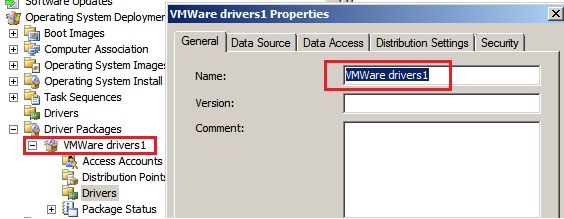
First create a Driver Package in SCCM;


After that import the VMWare drivers into the Driver section:
Make sure that during Driver creation wizard, to update boot images and distribution points of Driver package.

..
 Add Apply Driver Package into the Task Sequence, choose previosly created VMWare driver package and check: "Select the mass storage driver within the package that needs to be installed before setup on Pre-Vista operating systems"


Tuesday, July 26, 2011

SCCM 2007 and Microsoft Deployment Toolkit - Video

SCCM 2007 and Microsoft Deployment Toolkit - Video presentation by Richard Smith a Senior Consultant with Microsoft Services, UK which includes:
  • Setup the server environment for SCCM 2007 OS deployment
  • Configure the SCCM 2007 Site Settings
  • Configure the SCCM 2007 Computer Management Settings
  • Configure the SCCM 2007 Operating System Deployment Settings
  • Setup and use MDT integration with SCCM 2007
  • Add a reference machine object to SCCM 2007
  • Create a build and capture reference image for mass deployment using SCCM 2007

Forcing full synchronization from SCCM Parent site

Forcing synchronization from SCCM Parent site to the child site can be done using the following way:

Logon to SCCM Primary site using account with full SCCM admin privileges and to run preinst command from: 

C:\Program Files (x86)\Microsoft Configuration Manager\bin\i386\0000040


using the following switch:

preinst.exe /syncchild XXX

where XXX is a child SCCM code.

in my case MT1 is my primary child SCCM Server.

Check the following log files after launching preinst command:


Despool.log, Replmgr.log, Sender.log

Thursday, July 14, 2011

Configuring SCCM 2007 Secondary site issue

After installing the secondary site on SCCM secondary server in SCCM console this site has not been shown or still is pending.
Here is the solution:
Log on your Secondary SCCM Site server, copy the file \inboxes\sitectrl.box\SiteCtrl.ct0 file to a temp location, rename it to 00000000.ct2 and copy the renamed file to Primary SCCM Site Server \inboxes\hman.box\
In few seconds on SCCM Console you can see the Second SCCM Site Server.

Friday, July 8, 2011

Instaled version of WAIK - SCCM SP2 upgrade error

During the upgrade from SCCM 2007 SP1 to SCCM 2007 SP2, Installation Prerequisite Check gives the following error:


OS Deployment in Configuration Manager 2007 SP2 requires the WAIK 2.0 (version 6.1.7600).

To resolve this issue current WAIK 1.1 installation from SCCM 2007 SP1 has to be removed and WAIK 2.0 version from SCCM 2007 SP2 has to be installed.

Remove WAIK 1.1 from SCCM 2007 SP1.


Install WAIK 2.0 from SCCM 2007 SP2 install DVD source.

Checking C:\Program Files\Windows AIK\Tools\x86\ImageX.exe Details property on ConfigMgr Server shows that the right version of WAIK 2.0 has been installed.