After SCCM 2007 R2 installation on Windows Server 2008 R2 the following error is registered in Component Status in SMS_MP_CONTROL_MANAGER:
SMS Site Component Manager failed to install this component, because the Microsoft Installer File for this component (MP.msi) could not install.
Solution:
Removing the Config client installed on SCCM 2007 Server and modifying WEBDAV_schema.xml in C:\Windows\System32\inetsrv\config\schema\
with changing these values
/attribute name="allowAnonymousPropfind" type="bool" defaultValue="true" />
/attribute name="allowInfinitePropfindDepth" type="bool" defaultValue="true" />
/attribute name="allowCustomProperties" type="bool" defaultValue="false" />
helped me to resolve this issue.
Wednesday, July 14, 2010

Error after SCCM 2007 SP1 installation: Systems Management Server cannot create the object "SMS-Site-xxx" in Active Directory.
After the installation of SCCM 2007 SP1 this error is getting in Component Status in SMS_SITE_COMPONENT_MANAGER:
Systems Management Server cannot create the object "SMS-Site-ACM" in Active Directory.
Solution for this is to allow full control of the computer account the System Management container in AD:
1.Click Start, click Run, and then enter dsa.msc to open the Active Directory Users and Computers administrative tool.
2.Click View, and then click Advanced Features.
3.Expand the System container.
4.Right-click System Management. On the context menu, click Properties.
5.In the System Management Properties dialog box, click the Security tab.
6.Click Add to add the site server computer account and grant the account Full Control permissions.
7.Click Advanced, select the site server’s computer account, and click Edit.
8.In the Apply
Systems Management Server cannot create the object "SMS-Site-ACM" in Active Directory.
Solution for this is to allow full control of the computer account the System Management container in AD:
1.Click Start, click Run, and then enter dsa.msc to open the Active Directory Users and Computers administrative tool.
2.Click View, and then click Advanced Features.
3.Expand the System container.
4.Right-click System Management. On the context menu, click Properties.
5.In the System Management Properties dialog box, click the Security tab.
6.Click Add to add the site server computer account and grant the account Full Control permissions.
7.Click Advanced, select the site server’s computer account, and click Edit.
8.In the Apply
Thursday, July 8, 2010
IE 8 issue: Message: Library not registered.
I installed Outlook 2010 but I kept Office 2007. After that for some reason I reverted back Outlook 2007. When I opened SharePoint home page, the scripts cannot be loaded and I've got an IE error:
******************************************************
Webpage error details
User Agent: Mozilla/4.0 (compatible; MSIE 8.0; Windows NT 6.1; WOW64; Trident/4.0; SLCC2; .NET CLR 2.0.50727; .NET CLR 3.5.30729; .NET CLR 3.0.30729; InfoPath.2)
Timestamp: Thu, 8 Jul 2010 14:15:57 UTC
Message: Library not registered.
Line: 2367
Char: 2
Code: 0
URI:http://sharepoint_server/_layouts/1033/init.js?rev=qX%2BG3yl4pldKy9KbPLXf9w%3D%3D
******************************************************
Solution is to run Office Diagnostics from Help menu of Microsoft Office Outlook 2007.
******************************************************
Webpage error details
User Agent: Mozilla/4.0 (compatible; MSIE 8.0; Windows NT 6.1; WOW64; Trident/4.0; SLCC2; .NET CLR 2.0.50727; .NET CLR 3.5.30729; .NET CLR 3.0.30729; InfoPath.2)
Timestamp: Thu, 8 Jul 2010 14:15:57 UTC
Message: Library not registered.
Line: 2367
Char: 2
Code: 0
URI:http://sharepoint_server/_layouts/1033/init.js?rev=qX%2BG3yl4pldKy9KbPLXf9w%3D%3D
******************************************************
Solution is to run Office Diagnostics from Help menu of Microsoft Office Outlook 2007.
Friday, July 2, 2010
trace32.exe download
trace32.exe, a log viewer that provides a way to easily view and monitor log files created and updated by Configuration Manager 2007 clients and servers is included in Center Configuration Manager 2007 Toolkit V2.
You can download it from here:
http://www.microsoft.com/downloads/details.aspx?familyid=5A47B972-95D2-46B1-AB14-5D0CBCE54EB8&displaylang=en
You can download it from here:
http://www.microsoft.com/downloads/details.aspx?familyid=5A47B972-95D2-46B1-AB14-5D0CBCE54EB8&displaylang=en
Wednesday, June 23, 2010
Modifying Configuration.mof file on SCCM 2007 Server
To change the frequency of Client Access License (CAL) collecting data in Asset Inteligence in SCCM 2007, Configuration.mof has to be modified. Configuration.mof file is located on:
C:\Program Files (x86)\Microsoft Configuration Manager\inboxes\clifiles.src\hinv
Example:
// CAL tracking server side configurations and policy
[Singleton]
class CCM_CALTrackConfig
{
uint32 CALCollectionType;
uint32 CALCollectionFrequencyDays;
uint32 CALCollectionFrequencyMinutes;
uint32 CALCollectionTimeWindow;
string CALCollectionSupportedWindowsVersions;
};
instance of CCM_CALTrackConfig
{
CALCollectionType = 3; //0-Disabled, 1-User CAL, 2-Device CAL, 3-All
CALCollectionFrequencyDays = 2;
CALCollectionFrequencyMinutes = 60;
CALCollectionTimeWindow = 90;
CALCollectionSupportedWindowsVersions = "5.0,5.2,6.0";
};
C:\Program Files (x86)\Microsoft Configuration Manager\inboxes\clifiles.src\hinv
Example:
// CAL tracking server side configurations and policy
[Singleton]
class CCM_CALTrackConfig
{
uint32 CALCollectionType;
uint32 CALCollectionFrequencyDays;
uint32 CALCollectionFrequencyMinutes;
uint32 CALCollectionTimeWindow;
string CALCollectionSupportedWindowsVersions;
};
instance of CCM_CALTrackConfig
{
CALCollectionType = 3; //0-Disabled, 1-User CAL, 2-Device CAL, 3-All
CALCollectionFrequencyDays = 2;
CALCollectionFrequencyMinutes = 60;
CALCollectionTimeWindow = 90;
CALCollectionSupportedWindowsVersions = "5.0,5.2,6.0";
};
Wednesday, June 9, 2010
Enable DNS Autodiscovery for ISA 2006 Server/Client
If you assign DHCP addresses on your network and you have DHCP Autodiscovery record for ISA clients enabled then you will not have problem with ISA client configuration and IE Proxy Server settings on IE.
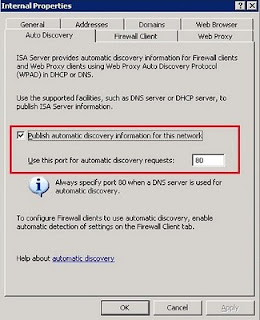 In this case when you change this port also if you want DHCP Autodiscovery to work the port on DHCP settings has to be changed from 8080 to 80.
http://your_ISA_Server:80/Wpad.dat
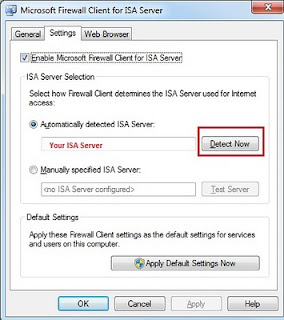

But the problem starts when you have static IP addresses and DNS Autodiscovery does not work.
In that case Proxy settings on IE are not applied. If you want to use GPO to configure Proxy Server settings on IE you'll see that is not possible. Locally installed ISA client does not permit change of this setting using GPO. If you remove ISA client that GPO is applied without any problem to IE and IE Proxy Server setting is configured.
If you want Proxy Server settings to be applied to IE when you have static IP address configured, you have two choices:
- Remove ISA client or
- Enable DNS Autodiscovery Process
Let's review the second possibility:
DNS Autodiscovery process for ISA 2006 is not enabled by default. You should enable on ISA console. If you want to use DNS Autodiscovery you should change the port from 8080 to 80 because DNS does not recognize 8080 request.
In this case when you change this port also if you want DHCP Autodiscovery to work the port on DHCP settings has to be changed from 8080 to 80.http://your_ISA_Server:80/Wpad.dat
Next step is to update your DNS server with Host A record wpad.yourdomain to point to actual ISA server. This is neccesery because DNS Autodiscovery is asking for http://wpad/wpad.dat and http://wpad/wspad.dat. You can easely test if DNS Autodiscovery works when you past http://wpad/wpad.dat and http://wpad/wspad.dat in IE. If you get this file then DNS Autodiscovery works.
If you try to ping wpad.yourdomain you can see that is not possible. This is because wpad is blocked by default from Windows 2008R2 DNS. What you should do is to unblock it.
dnscmd [
Here is MS article for more information:
http://technet.microsoft.com/en-us/library/ee649250(WS.10).aspx
When this is change is done then DNS Autodiscovery will start to work !!!
Just click on Detect Now on ISA Client and your ISA Server will be Automatically detected.

Subscribe to:
Posts (Atom)